Article: Update Admin User Access to Programs & Permissions content
View Permissions & Program Access
Use this section to see what each admin can access within your organization’s ACEMAPP account.
Step 1: Open the Permissions Page
From the home page, select the "More" dropdown on the right, then choose "Permissions."

Step 2: View Admin Permissions
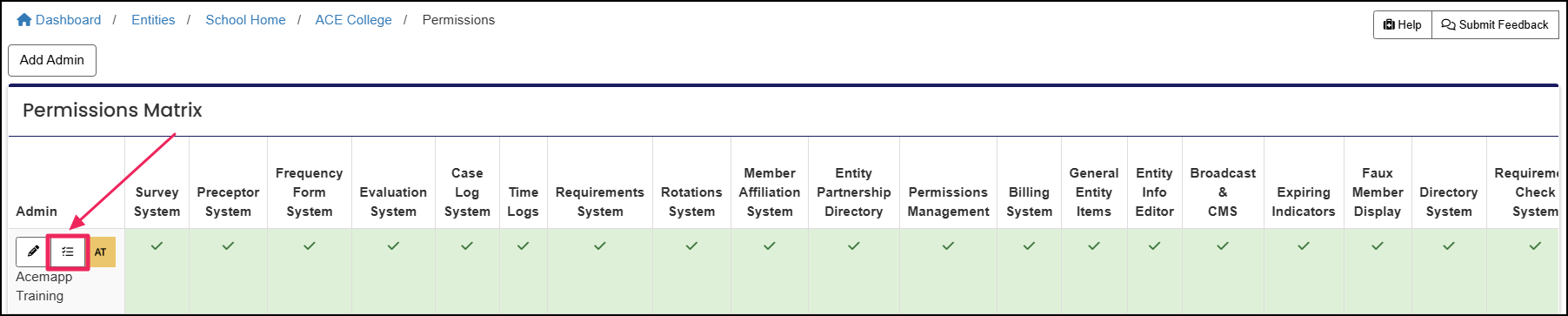
The Permissions Matrix displays all the current admins along with their respective permissions. To see a list of programs accessible to each admin, click on the "Programs" button located on the left side.
Green Checkmark = Admin has full access to the permission
Red X = Admin has zero access to the permission
Note: Permissions shown vary based on the organization's setup in ACEMAPP. Please contact ACEMAPP Support with any questions.
Manage Permissions & Program Access
Use this area to add, remove, or edit admin access and program assignments.
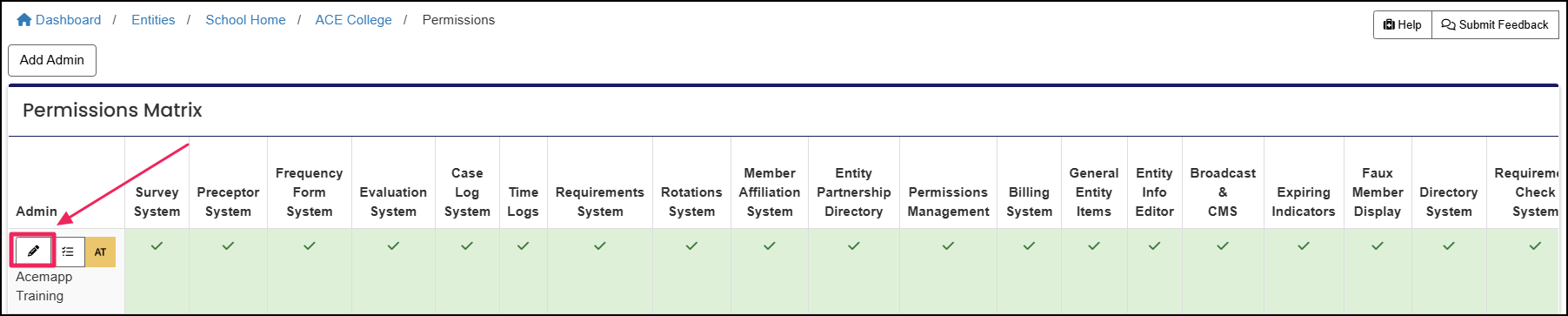
Step 1: Select the Admin to Edit
Click on the "Edit" (pencil icon) button next to the admin whose permissions require modifications.
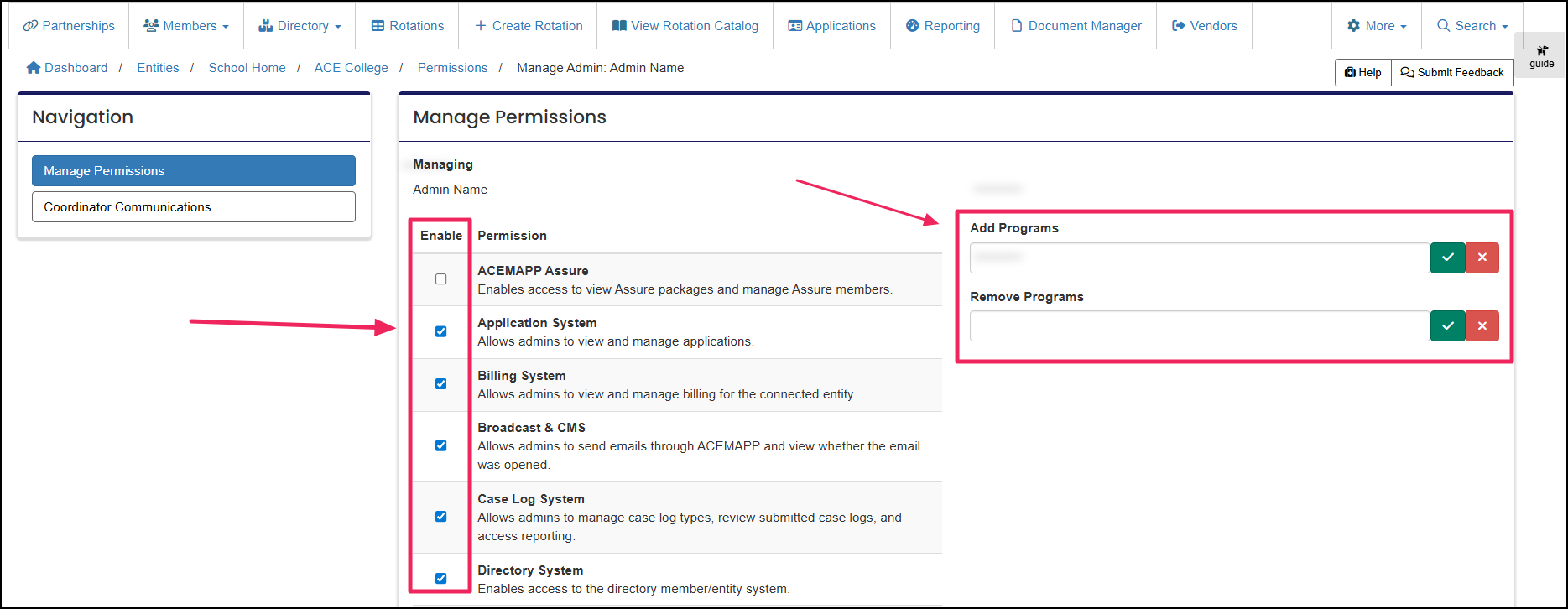
Step 2: Adjust Permissions and Program Access
On the Manage Permissions page, review the permissions list and update access as needed. To add or remove a program, click the appropriate field and select the program from the dropdown menu. You may click the green check box to select all programs. Remember, all admin access change requests are processed by ACEMAPP Customer Support. If the request requires immediate attention, please contact us directly
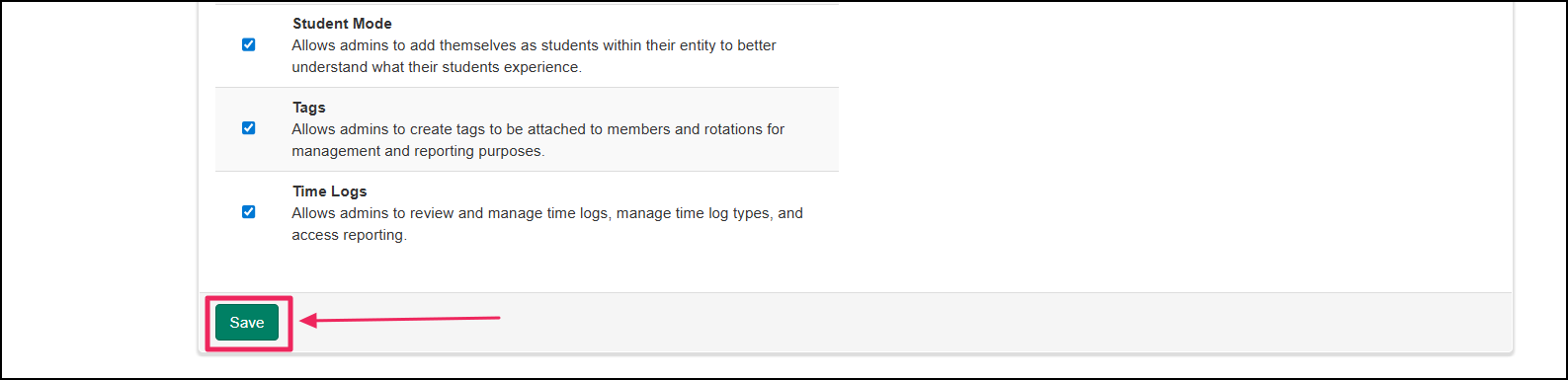
Step 3: Save Changes
After reviewing the form, click "Save." Your request will be received and processed by ACEMAPP Customer Support. You will receive an email notification once your request is processed and the necessary admin permissions are updated accordingly.
View and Update the Coordinator Communications Form
Coordinator Communications is the area in ACEMAPP where you update an admin’s roles so that ACEMAPP and partner coordinators know who to contact within your entity. These roles help ensure that communications, such as questions about rotations, onboarding, compliance, or scheduling, are routed to the correct person.
Roles in ACEMAPP indicate an admin’s functional responsibility, specifically, who has decision-making authority and who external or internal team members should contact. These roles clarify communication responsibilities and do not determine notification settings.
About the Primary Account Admin
The Primary Account Admin is the main decision-maker for the account. This individual is responsible for high-level administrative decisions, including approving partnerships, setting or updating requirements, overseeing rotation activity, and serving as the primary point of contact for ACEMAPP and partner organizations. Each entity should have at least one Primary Account Admin.
Step 1: Open Coordinator Communications
From the "Manage Permissions" page, click the "Coordinator Communications" tab under "Navigation" on the left.
Step 2: Assign or Update Roles in ACEMAPP
Under Coordinator Communications, you will see any roles currently assigned to the admin. To add or remove a role:
-
Click the "Role in ACEMAPP" field
-
Select the role from the dropdown
-
Click "Save"
You may select the Primary Account Admin role here.
An Entity is a School, Clinical Site, High School, Company, etc.
The connection between Entities in ACEMAPP.
An active Partnership between two entities is needed to create a rotation in ACEMAPP.
A requirement is an item a member may need to complete based on their affiliation to an entity or rotation assignment.
A rotation is a scheduled clinical experience.
